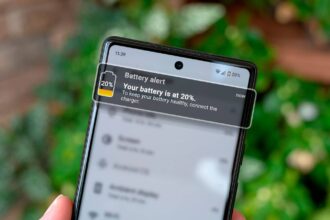


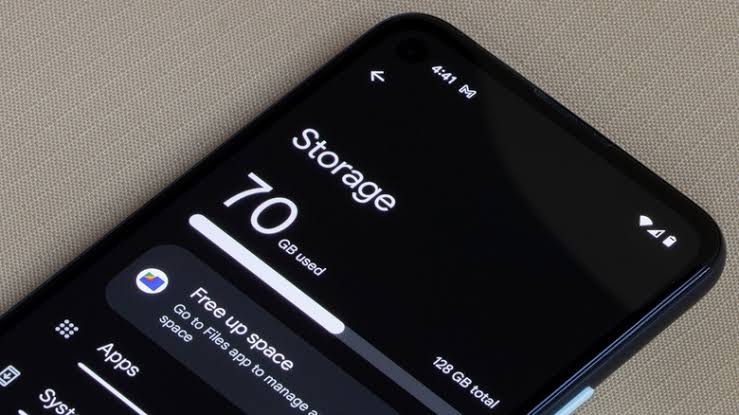
Let’s say you pick up your phone to download an app or take a video, and boom “Storage Almost Full”.
If deleting your favorite photos isn’t an option, there are other ways to free up space without losing precious memories.
Here are a few ways to make your job easier;
1. Clear Cached Data
Most of your Applications use a storage mechanism known as “cache” to optimize their performance and enhance user experience by enabling faster loading times.When
When you use an app, it often saves temporary files in its cache. These files might include images, data from previous sessions, or other elements that expedite the app’s ability to retrieve information quickly.
Don't MIss This Article

While caching can significantly improve the responsiveness and speed of an app, this process can accumulate an extensive amount of data over time.As
As you continue to interact with the app, the cache can grow considerably, sometimes consuming several gigabytes of storage space on your device.
This excess cache can lead to issues such as reduced available storage, slower device performance, or even application malfunctions.
Don't MIss This Article

To manage this, many devices offer options to clear the cache regularly, allowing users to reclaim valuable space and maintain optimal performance.
So, while cache is a helpful feature for enhancing app performance, being mindful of its impact on storage can lead to a better overall experience.
How to Clear Cache:
- Go to Settings
- Tap Storage
- Select Cached Data and clear it
2. Use Google Photos Backup
Google Photos is an incredibly useful platform that allows users to seamlessly back up their pictures and videos to the cloud.This
This fantastic service not only helps you preserve your precious memories but also significantly frees up storage space on your devices, ensuring that you’re not constantly running out of room for new photos or apps.
Steps to Back Up & Free Space:
Don't MIss This Article

- Install or open Google Photos
- Enable Backup & Sync
- Use the “Free up space” option in the app menu
3. Delete Offline Downloads from Apps
Apps like Spotify, Netflix, and YouTube offer the convenience of downloading content for offline viewing or listening, but this feature can rapidly fill your phone’s storage capacity with music, movies, and shows.
It’s important to regularly manage or delete some of your downloads to ensure you have enough space for other important apps and files.
How to Remove:
- Open the app
- Navigate to Downloads or Offline Files
- Delete content you no longer need
4. Move Files to an SD Card or USB OTG
If your smartphone is equipped with the capability for expandable storage, consider transferring large files, such as videos, photos, and music, to a microSD card.
This not only helps free up space on your device but also keeps your media organized and easily accessible.
If your phone lacks a slot for an SD card, you can use a USB On-The-Go (OTG) flash drive as an alternative.
This handy tool allows you to connect an external storage device directly to your phone, enabling you to offload large files quickly and efficiently.
Just plug the drive into your device’s charging port, and you can transfer or access files without the hassle of a computer.
5. Uninstall Unused Apps
We all have apps we haven’t opened in months. Remove them to instantly free up space.
We all have those apps sitting on our devices that we haven’t opened in months, just gathering digital dust.
Take a moment to sift through your app list and identify these forgotten icons.
By removing them, you can instantly free up valuable storage space on your device, making it run more smoothly and ensuring that only the apps you truly use are easily accessible.
Clearing out the clutter not only enhances your device’s performance but also creates a more streamlined user experience. So go ahead and remove those unused apps today
Tip: Check your Settings > Apps to see storage usage per app.
That’s all
You don’t need to lose your photos to gain space. With these steps, you can easily free up storage and keep your favorite memories safe.