

Your Android phone is packed with powerful features, but most users in Nigeria only scratch the surface.
Here are the top hidden Android settings you should activate today.
1. Turn On Data Saver Mode to Stop Background Data Drain
Since data is so expensive in Nigeria, we have to be smart about how much data our phones use, especially with all the social media apps like Facebook, Instagram, and TikTok, which are notorious for sucking up data in the background, leading to those nasty internet data bills.
How to activate:
- Go to Settings > Network & Internet > Data Saver
- Turn on Data Saver
This forces apps to only use data when they’re active on your screen, helping you reduce hidden data costs.
Don't MIss This Article

2. Enable Developer Options for Performance Tweaks
This setting is hidden by default, but once activated, you gain better control over animations and background processes, allowing for a more tailored and efficient Android experience. This includes optimizing visual effects and managing resource consumption for improved performance and battery life.
Steps:
- Go to Settings > About Phone
- Tap Build Number 7 times until you see “You are now a developer!”
- Go back to Settings > System > Developer Options
Now you can:
Don't MIss This Article
- Reduce or turn off Window and Transition Animations (makes phone feel faster)
- Limit background processes to preserve RAM
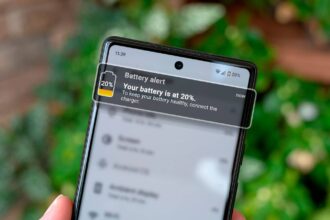
3. Use Battery Optimization to Extend Power Life
NEPA wahala? You should utilize battery optimization techniques to greatly extend the operational lifespan of your smartphone, ensuring longer usage and reducing the need for frequent charging, particularly in areas with unreliable power sources..
How:
- Go to Settings > Battery > Battery Usage
- Tap the 3-dot menu and select Battery Optimization
- Apply optimization for apps you don’t need running in the background like Facebook or games
4. Turn Off Location Tracking for Non-Essential Apps
Constant location tracking by apps can significantly drain your battery life and poses a serious risk to your privacy. When apps have access to your location 24/7, they continually run in the background, consuming power and impacting the overall performance of your device.
This relentless tracking not only leads to a frustrating experience due to frequent charging but can also leave your personal information exposed. Your location data can be collected, shared, or even sold without your explicit consent, leading to unwanted surveillance and breaches of privacy.
It’s crucial to be mindful of which apps you grant location access to and to regularly review your privacy settings to protect yourself from unnecessary risks.
To manage:
Don't MIss This Article
- Go to Settings > Location > App Permissions
- Set unnecessary apps like games, social media, and browsers to “Allow only while using the app” or “Deny”
5. Enable Wi-Fi Calling (If Supported)
If you find yourself in an area with weak cellular network coverage but have access to a reliable and strong Wi-Fi connection, you can take advantage of Wi-Fi Calling.
This feature enables you to make voice calls using the internet rather than traditional cellular signals. It can be particularly useful in locations like basements, rural areas, or buildings with thick walls where mobile signals are often compromised.
By utilizing your Wi-Fi network, Wi-Fi Calling ensures clearer call quality and helps you stay connected even when your phone’s signal strength is insufficient.
Check if your phone supports it:
- Go to Settings > Network & Internet > Mobile Network > Wi-Fi Calling
- Toggle it on
Note: Only some Nigerian networks like MTN and Airtel offer limited support.
6. Activate ‘Find My Device’ to Track Lost or Stolen Phones
As incidents of phone theft continue to increase, it’s crucial to utilize available settings that can significantly enhance the security of your device. Implementing these features can help protect your personal information and ensure that your phone is recovered more easily if lost or stolen..
Steps:
- Go to Settings > Security > Find My Device
- Toggle it ON
- Make sure your Google account is signed in
You can then track your phone from any browser via android.com/find
7. Turn On Night Light for Better Eye Protection
Night Light is a feature designed to filter out blue light emitted by screens, significantly reducing eye strain during nighttime use. This can be particularly beneficial for night owls or students who often find themselves studying or working late into the evening.
By minimizing exposure to blue light, Night Light helps to create a more comfortable viewing experience, allowing users to ease into a restful night’s sleep without the harsh effects of bright screens disrupting their natural circadian rhythms.
To activate:
- Go to Settings > Display > Night Light
- Set a schedule (e.g. 7 PM to 6 AM)
8. Use Digital Wellbeing to Cut Phone Addiction
If you’re finding it difficult to maintain your concentration or want to cut back on the time you spend in front of screens, consider utilizing the Digital Wellbeing tool available on Android devices.
This feature offers a range of functionalities designed to help you monitor and manage your digital habits, such as tracking your app usage, setting time limits on certain applications, and enabling focus mode to minimize distractions.
By incorporating these tools into your daily routine, you can cultivate healthier screen time habits and enhance your overall productivity.
How to use:
- Go to Settings > Digital Wellbeing & Parental Controls
- Set app timers (e.g., 30 mins for TikTok daily)
- Enable Focus Mode to block distractions
9. Turn Off Auto-Sync to Save Battery and Data
Auto-sync functionality continuously monitors and checks for updates across various services, including your email accounts, cloud backup systems, and a wide array of social media applications, potentially leading to increased battery consumption and data usage if not managed effectively.
To turn it off:
- Go to Settings > Accounts > Auto-sync data
- Toggle OFF or select specific accounts to manage
10. Enable Screen Pinning for Security
When you lend your phone to someone, Screen Pinning is a useful security feature that restricts their access to only a single application, ensuring they can only interact with that specific program and preventing them from accessing other potentially sensitive data or settings on your device..
To enable:
- Go to Settings > Security > Advanced > Screen Pinning
- Toggle ON
- When you open an app, tap the overview/recent apps button and pin it
Only your PIN or fingerprint can unlock it again.
That’s it
These hidden Android settings are not just for techies, they’re for everyday Nigerians who want to save data, extend battery life, and get the most out of their smartphones.
No matter the phone you’re using, be it a budget Infinix, Tecno, Samsung, or Xiaomi, activating these features will noticeably improve your phone’s performance and your daily experience.