

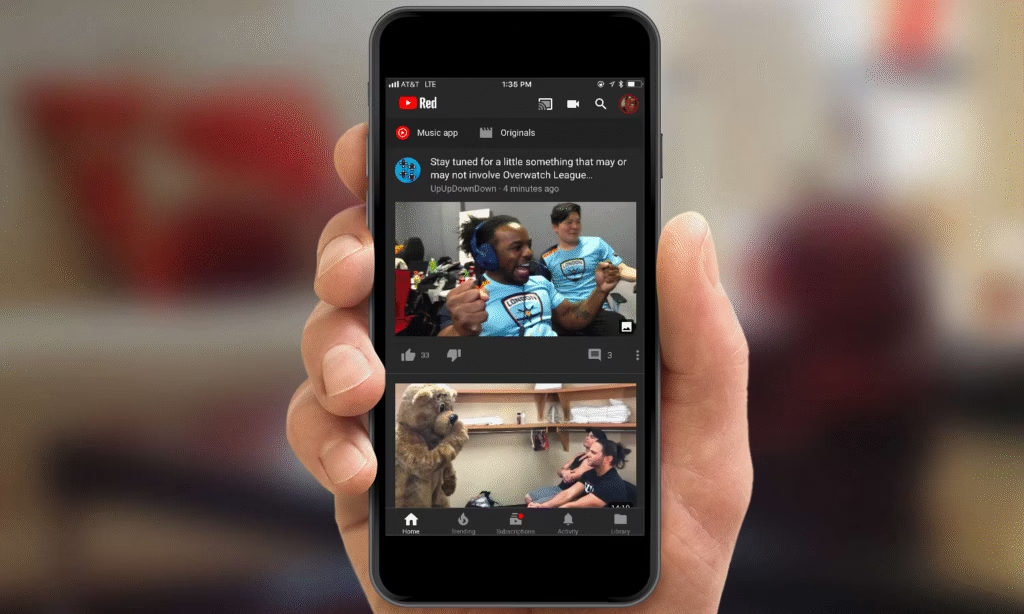
If you’re someone who watches YouTube at night or simply hates the glare of its bright white background, switching the app into Dark Mode can make the experience much more comfortable.
Fortunately, activating the dark theme in the app is straightforward and works on both Android and iOS devices.
Enable YouTube Dark Mode for Android
On Android devices, you open the YouTube app, tap your profile icon, then go to Settings → General → Appearance, and select either “Dark Theme” or “Use device theme” to match your phone’s global setting.
Enable YouTube Dark Mode for iPhones
For iPhones and iPads, the process is nearly identical: go to the YouTube app, tap your profile picture, open Settings, then Appearance and choose between Light or Dark theme.
Switching is not just a cosmetic change. The dark background not only reduces eye strain when watching videos in low-light environments but also tends to look sleeker and can save battery life on devices with OLED displays. Many users say they notice how much less their eyes tire after prolonged viewing in dark mode.
Don't MIss This Article

Here’s how to do it step by step for Android:
Open the app, tap your profile picture, go to Settings, then General settings, tap Appearance, and finally pick Dark Theme or Use device theme.
The same sequence works for iOS after the Settings → Appearance step. I found it took less than a minute to switch and the app UI toggled almost instantly.
If you don’t see the Appearance option, there are a couple of things to check. Make sure your YouTube app is updated to the latest version from the Play Store or App Store.
Don't MIss This Article

On some older phones or older app versions, the toggle may be hidden.
Some users on Reddit reported needing to clear the app’s cache or reinstall to restore the dark mode option after an update.
On iOS, if the Appearance toggle is missing, forcing the device into system-wide dark mode from Settings → Display & Brightness may sometimes force the YouTube app into dark theme too, though this is more of a workaround than an official fix.
For users in Nigeria and other regions, the good news is that YouTube’s dark mode option is available globally so it does not require a Premium account or special steps beyond what’s listed above.
Once you’ve switched, you’ll notice the change across the entire app: the home feed, video pages, menus and search results all adopt a darker tone.
If you ever want to revert back, go to the same Appearance menu and select Light theme or Use device theme to respect your system preference.

And if your device is synced to automatically switch themes at sunset or sunrise, you can choose Use device theme so YouTube follows that same schedule leaving you with dark mode after evening starts and light mode during daytime.
In short, turning on Dark Mode in YouTube is quick, globally available, and makes a difference.